
 Cancel My Account
You can change your avatar's appearance in the 3D world, and VIP members can also shop for clothing, skins and accessories in the Utherverse Clothing System.
Change your avatar in-world
- Log in to the Utherverse client.
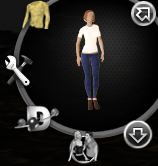
- Select the Customize icon in the button ring around your mini-avatar, in the upper-right corner.
- Use the options to change your avatar's size, gender and species, and to choose clothing and other features.
- Select Save Change to apply your changes.
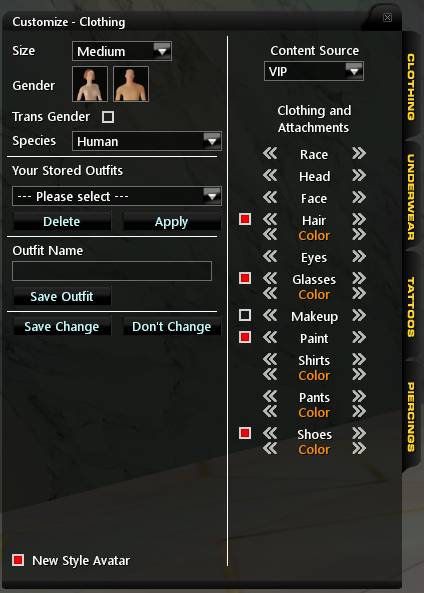
Basic members can choose from a limited selection of items. VIP members can access many more options, including the Clothing System.
Shop in the Clothing System (VIP)
Go to utherverse.com/Clothing. From the menu at the top you can:
- Browse Catalogue: browse all items, or start from the Top Categories on the main page
- Browse Designers: see items made by individual designers
- Top 20 Outfits: see the most popular outfits
- My Outfits: see the items you've bought
- Cart and Wishlist: review items you've saved
Your avatar's current gender and model (New or Legacy) are shown at the top of the page. Items only work on the gender and model they're made for.
Search for items
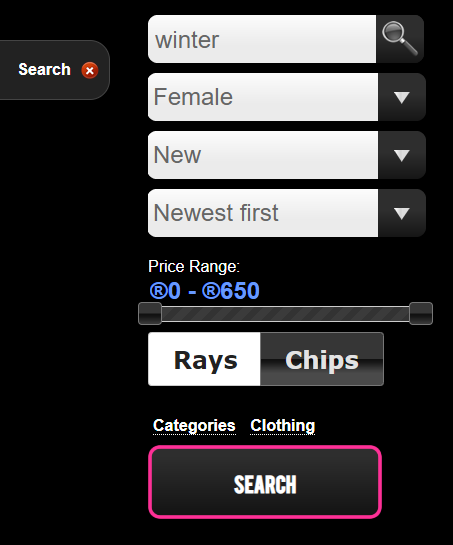
- Select Search to open the search panel.
- Enter a keyword, or leave it blank to browse.
- Choose a gender and model so that you only see items your avatar can wear.
- Choose how to sort the results, and set a price range if you like.
- Choose whether to pay with Rays or Chips. Choosing Chips hides items that can't be bought with chips.
- Optionally select Categories to narrow the results to a category or subcategory.
- Select Search.
Preview and buy items
- Hover over an item to see its gender and model, and to add it to your cart or wishlist.
- Select the item's picture to open a quick preview with an Instant Purchase option.
- Select Details to see the full item page, including the pieces in the outfit, ratings, comments and other designs by the same designer.
- To preview an item on your avatar in-world, log in to the 3D client with the same profile, then select the eye icon. Only you can see the preview. Your avatar's gender and model must match the item.
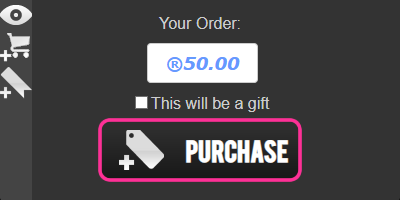
- On the details page, select Purchase. To buy the item for someone else, tick This will be a gift and enter their username.
Saved outfits
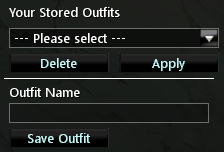
An outfit saves everything your avatar is wearing so you can switch back to it quickly. Deleting an outfit doesn't remove the items from your inventory.
| To… | In-world (Customize panel) | On the website (Profile > Avatar) |
|---|---|---|
| Save an outfit | Dress your avatar, enter a name in Outfit Name, then select Save Outfit | Enter a name in Outfit Title under Save Current Avatar Outfit, then select Save Outfit |
| Wear an outfit | Choose it under Your Stored Outfits, select Apply, then Save Change | Select -apply- next to the outfit under Saved Outfits |
| Delete an outfit | Choose it under Your Stored Outfits and select Delete. It's deleted immediately. | Select -delete- next to the outfit under Saved Outfits |
Need more outfit slots? Go to Profile > Avatar. Under Save Current Avatar Outfit, choose how many slots to buy (®2 each), enter your PIN and confirm.
Reset your avatar
If your avatar looks wrong, go to Profile > Avatar and use Reset Factory Default, or select Reset Avatar in the Clothing System. Tip: save your usual look as an outfit first so you can switch back to it easily.