Cancel My Account
The quickest way to learn your way around Utherverse is to explore and talk to other members. Volunteers and Guides are always happy to point you to clubs, businesses and other places to visit. Venues change often, so there are no fixed maps. Instead, use the tools below.
VWW Directory
The VWW Directory lists venues and businesses across Utherverse. You can open it in two ways:
- In-world: select the Explore button, then the Directory tab.
- On the web: go to creep3d.com.
Browse by category, or search by keyword or title. Select a property's name to visit it.
List your property in the directory
- Log in at utherverse.com and go to Property > Manage Property.
- In the Choose Property Group menu, select the world your property is in.
- Find the property and select Manage.
- Open the Keywords tab.
- Under Change Category, choose a category and select Update. Properties without a category don't appear in the directory.
- Under Enter Keywords for Your Property, add up to 25 keywords, separated by commas, and select Update. Use words people are likely to search for.
- Under About Your Property, write a short description and select Update. This is what people see when your property appears in search results.
Events
The Events Calendar lists current and upcoming events. Most are hosted by members, and some by the Utherverse Events Team. You can open it in two ways:
- In-world: select the Explore button, then the Events tab.
- On the web: go to utherverse.com/Events.
Use the arrows to move between dates and times, and select an event to see its details. If the event is happening now, select its VWW link to go straight to the venue.
To learn more, including how to list your own event, see Events Calendar.
Landmarks
Landmarks save the address of a place so you can return to it quickly.
To save a landmark:
- Go to the property you want to save.
- Select the Landmarks button at the top of the 3D browser.
- Enter a title for the landmark. If you leave it blank, the property's own title is used.
- Select Create.
To visit a landmark: select the Landmarks button, find the place in your list, and select its name.
Dimensions
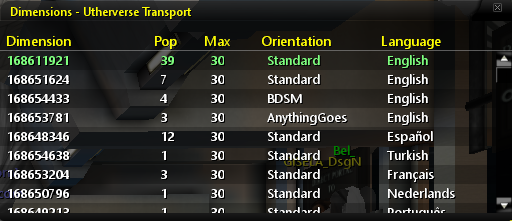
A dimension is an identical copy of a property. Dimensions keep members with different orientation and language settings apart, and they open automatically when a property gets full. Members in different dimensions can't see each other, and each dimension has its own General Chat.
To switch dimensions, select the Dimensions button (marked with a D) in the button menu around your mini-avatar, in the upper-right corner of the 3D browser. The list shows each dimension's orientation, language and whether it's full. Select a dimension to enter it.